dbt profiles
- Once the dbt installation is complete, go to your file explorer and open your user folder.
- Unhide all folders if needed. On macOS, use
Cmd + Shift + .. - Open the
.dbtfolder. If it does not exist, create it. - Inside that folder, create a new file called
profiles.yml.
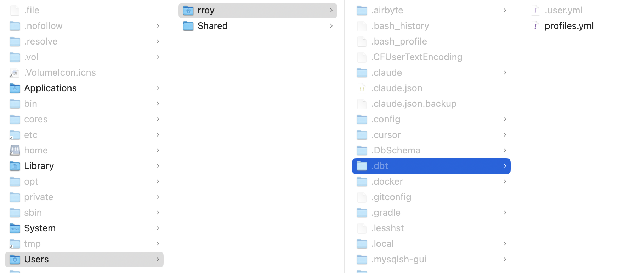
- Add a profile like the following, replacing the placeholders with the values for your environment:
dbt_<org_name>:
  outputs:
    prod:
      dbname: <db_name>
      host: localhost
      pass: <password>
      port: 5432
      schema: prod
      threads: 4
      type: postgres
      user: <username>
    dev:
      dbname: <db_name>
      host: localhost
      pass: <password>
      port: 5432
      schema: dev
      threads: 4
      type: postgres
      user: <username>
  target: dev
You can find the credential values inside your Vaultwarden vault. Log in to Vaultwarden as described in the next section.
If your environment does not use a local tunnel or port-forwarding workflow, replace localhost with the actual warehouse host provided for your project.